
Customer Guide
Welcome! This guide walks you through everything you can do as a customer — registering your account, adding your pets, making bookings, and handling daycare.
Getting Started
Registration
- Go to your facility's Petboarding website
- Click Login in the top-right corner
- Click Create account
- Fill in your email address and choose a password
- Verify your email if required
Navigation
Petboarding uses a sidebar menu. Click the menu button (☰) in the top-left corner to open it. The menu adapts to your role — as a customer, you'll see links for your account, bookings, and daycare.
Setting Up Your Profile
Before you can make bookings or add daycare dates, you need to complete your profile.
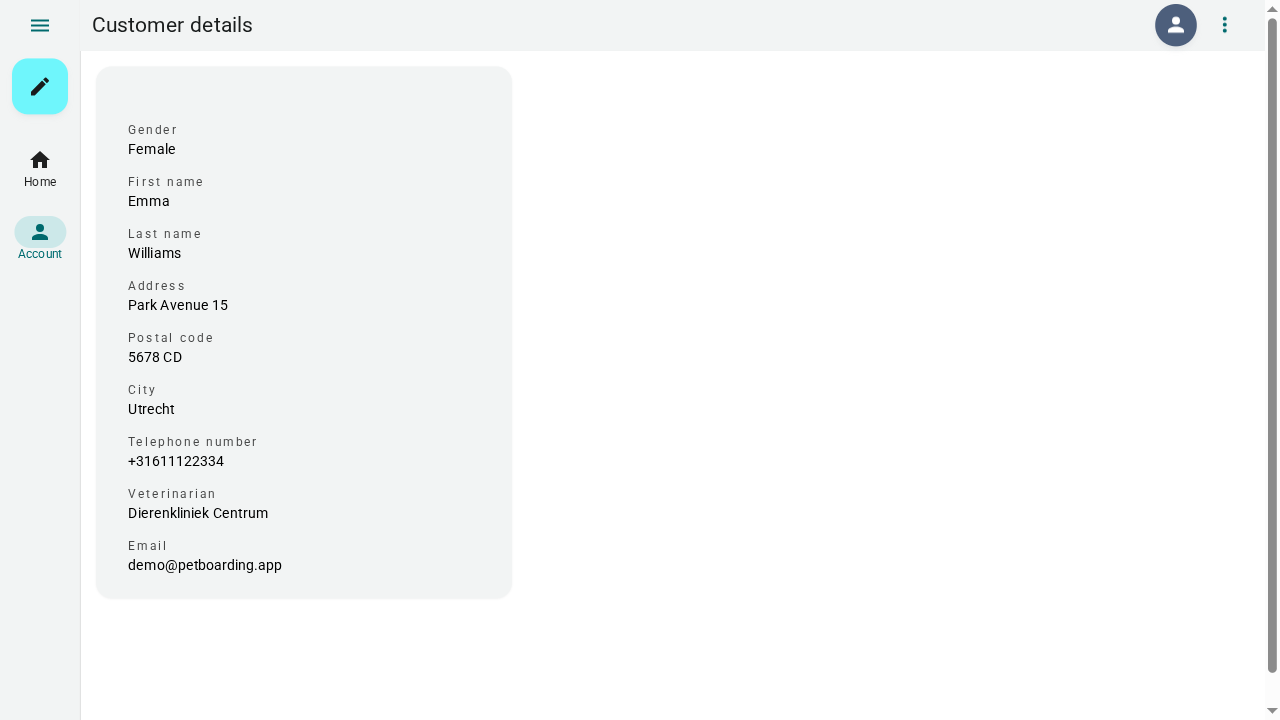
Customer Details
- Open the sidebar menu and go to Account → Customer details
- Click the Edit button (pencil icon) at the top
- Fill in your personal information:
- Gender, first name, last name
- Address, postal code, city
- Telephone number
- Veterinarian (optional)
- Comments (optional)
- Click Submit to save
Contact People
Add emergency contacts — people the facility can reach if needed.
- Go to Account → Contact people
- Click the Add button (+) at the top
- Enter the contact's first name, last name, and telephone number
- Click Submit
- Repeat to add more contacts
Pets
Register every pet that will stay at the facility.
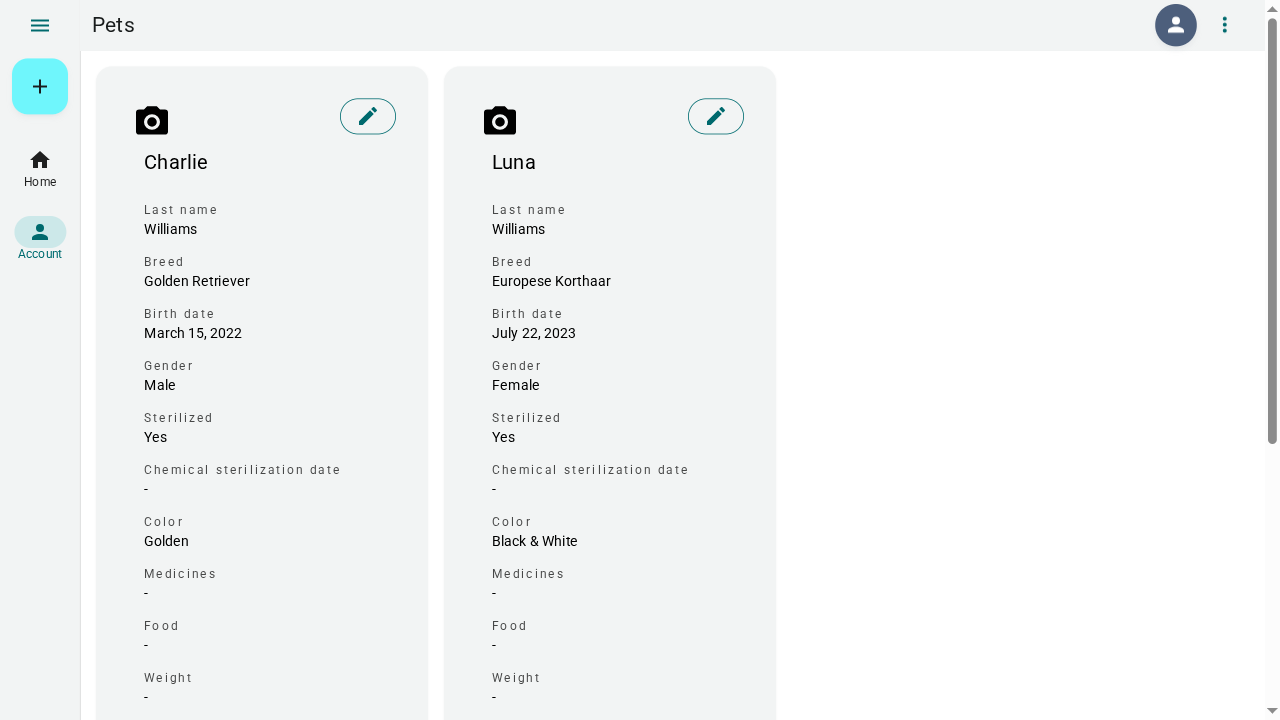
- Go to Account → Pets
- Click the Add button (+) at the top
- Fill in your pet's details:
- Species — Dog or cat
- Name, breed, gender, birth date
- Color, weight, chip number (if available)
- Sterilized — Check if applicable
- Food — Kind, amount per meal, and times per day
- Medicines — Any medications your pet needs
- Comments — Special instructions or particularities
- Photo — Upload a picture of your pet
- Click Submit
- Repeat for each pet
 5. Repeat for each pet
Tip: Make sure your pet's vaccinations are up to date. The facility may require proof before approving bookings.
Making a Boarding Booking
Book a stay for your pet at the facility.
- Go to Account → Bookings
- Click the Add button (+) at the top
- Select dates — Click the start date and end date on the calendar
- Select times — Choose your arrival and departure time slots
- Select pets — Check the pets that will be staying
- Optional services — Add services like washing or grooming if available
- Terms & conditions — Check the box to agree
- Click Submit
What happens next?
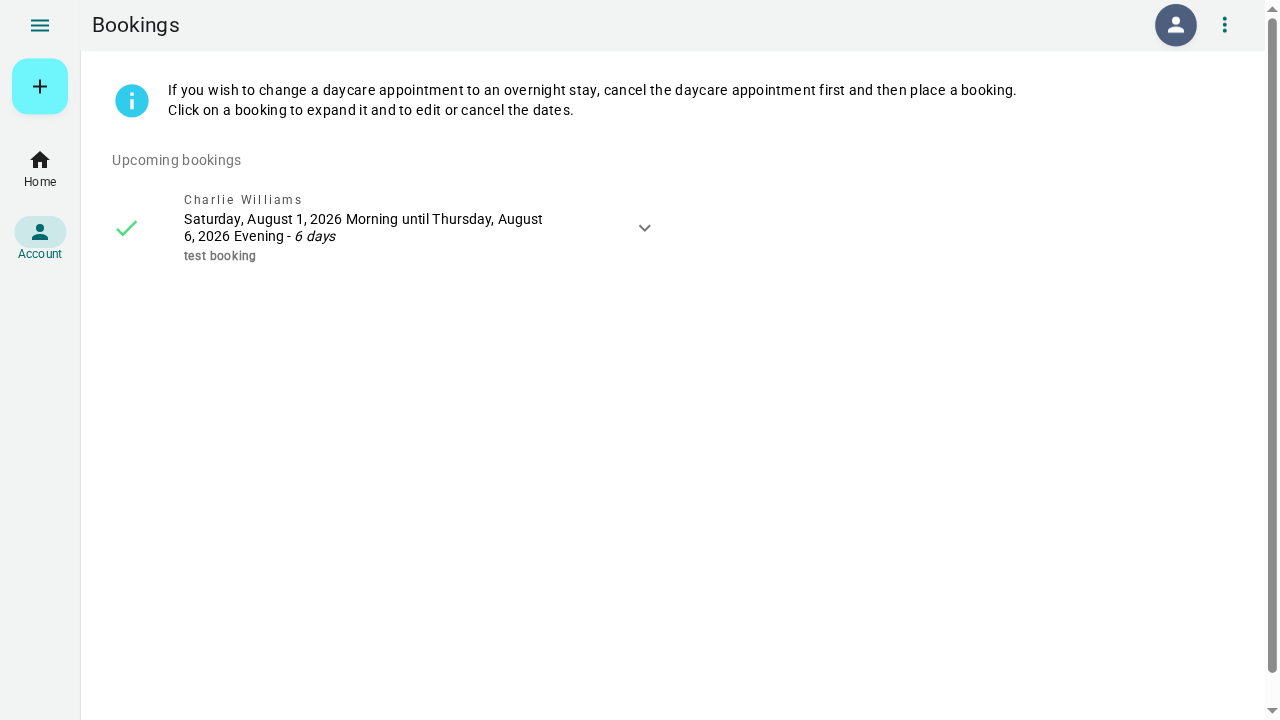
Your booking is now pending. An administrator will review it. You'll receive an email when it's:
- Approved — Your booking is confirmed. If a down payment is required, you'll receive payment instructions.
- Rejected — The booking cannot be accommodated.
- Standby — The facility is full, but you're on the waiting list.
Managing bookings
- View status — Check your bookings page to see the current status of each booking
- Modify — You can edit a pending booking before it's reviewed
- Cancel — Cancel a booking if your plans change (cancelation fees may apply)
Daycare
Purchasing a Daycare Subscription
If your facility requires daycare subscriptions:
- Go to Account → Daycare
- Click Purchase subscription
- Choose the subscription package that suits you
- Complete the payment
- Your subscription is now active — remaining days are shown on the daycare page
Adding Daycare Dates
- Go to Account → Daycare
- Click the Add button (+) at the top
- Select the dates your pet will attend on the calendar
- Select which pets will attend
- Click Submit
Tracking Daycare Status
- Dates show as pending until reviewed by an administrator
- Once approved, they appear as approved
- You can cancel future daycare dates if your plans change
Note: Daycare dates do not generate email confirmations. Check the daycare page to see their status.
Changing Your Information
You can update your profile, pets, and contacts at any time:
- Customer details — Edit and resubmit your personal information
- Contact people — Add, edit, or remove emergency contacts
- Pets — Update pet details, food schedules, or upload new photos
Tips
- Keep vaccinations current — Expired vaccinations may prevent booking approval
- Book early — Popular dates fill up quickly, especially during holidays
- Check the availability page — See which dates are blocked before planning
- Read announcements — Important facility updates appear on the home page