
Employee Guide
This guide covers the day-to-day operations tools available to employees — from managing kennels to handling customer records.
Navigation
As an employee, your sidebar menu includes:
- Day Overview — Today's arrivals and departures
- Agenda — Weekly calendar of bookings and daycare
- Kennel Layout — Visual kennel assignment
- Customers — Search and manage customer records
- Pets — Manage pet profiles and vaccinations
- Labels — Print pet and booking labels
Day Overview
The day overview shows all arrivals and departures for a specific date.
- Go to Employee → Day Overview
- The page defaults to today's date
- Use the date picker to navigate to other dates
- See which pets are arriving, departing, or in daycare
Print tip: Print the day overview from the print layout at
/print/overview/:datefor a physical reference sheet.
Agenda
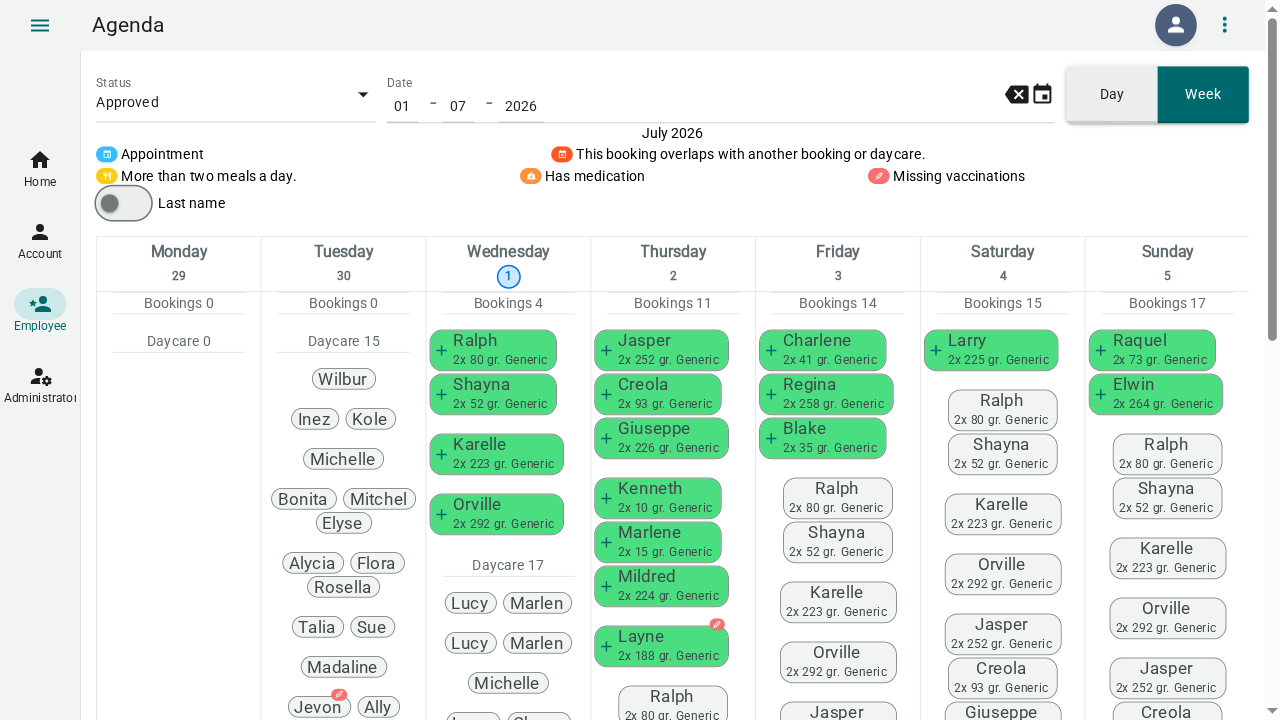
The agenda provides a calendar view of all bookings and daycare appointments.
- Go to Employee → Agenda
- Switch between Day and Week views using the toggle
- Navigate dates with the arrows or date picker
- Each day shows:
- Opening times — Colored blocks for arrival/departure slots
- Bookings — Pet names with status indicators
- Daycare — Daycare pets for that date
- Filter by status — Show only approved, pending, or specific statuses
- Pet chips show color-coded badges for:
- 🍽️ Food requirements
- 💊 Medications
- 💉 Vaccination status
Visual Warnings
- Double-booked pets are highlighted
- Appointment services show an icon badge
- Missing vaccinations display a warning indicator
Kennel Layout
Assign pets to kennels visually using drag-and-drop.
Viewing the Layout
- Go to Employee → Kennel Layout
- Select a date using the date picker
- The layout shows buildings and their kennels
- Assigned pets appear as chips inside kennels
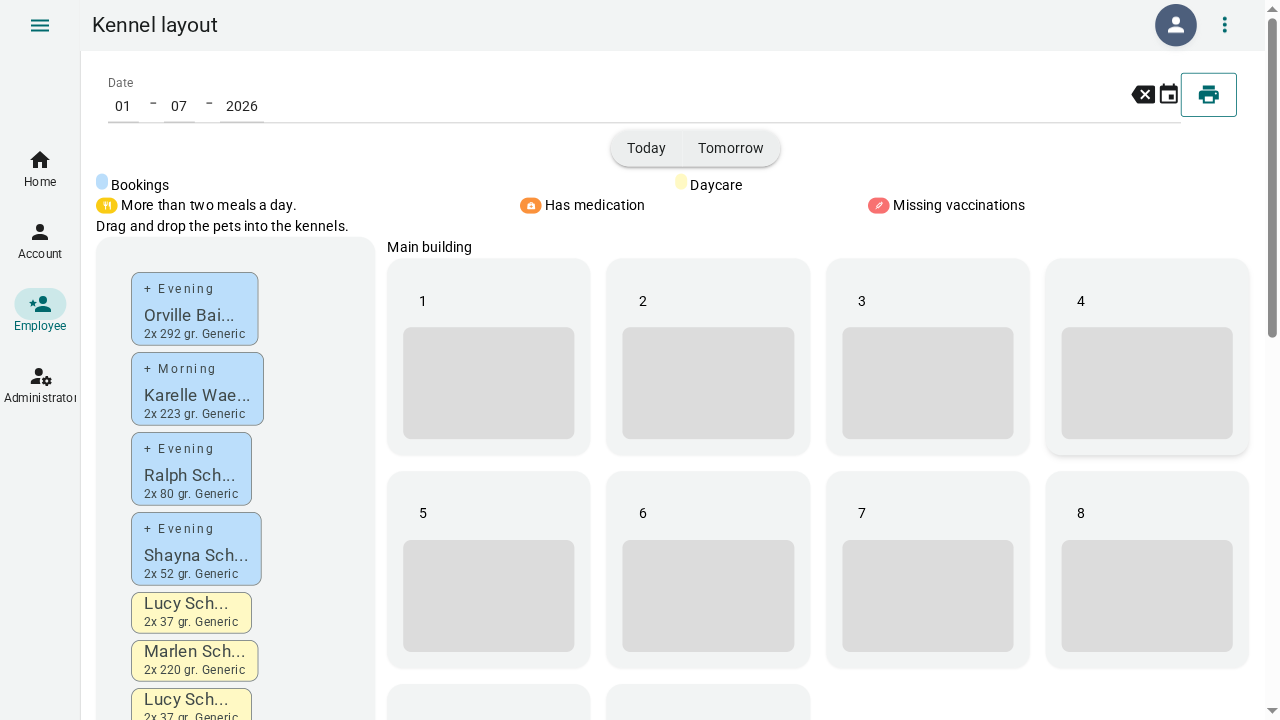 4. Assigned pets appear as chips inside kennels
Assigning Pets to Kennels
- Find an unassigned pet (they appear in the unassigned area or in another kennel)
- Drag the pet chip
- Drop it onto the target kennel
- The assignment is saved automatically
Pet Chip Information
Each pet chip shows:
- Pet name
- Species icon (🐕/🐈)
- Vaccination status badge
- Food and medication indicators
- Right-click for detailed pet information
Printing the Layout
Print the kennel layout for physical reference:
- Navigate to
/print/kennellayout/:date - Use your browser's print function
- The layout is optimized for printing
Managing Customers
Search, view, and update customer records.
Finding a Customer
- Go to Employee → Customers
- Use the search bar to find customers by:
- Name
- Telephone number
- Email address
- Click a customer to view their full profile
Customer Profile
The customer detail page shows:
- Personal information and contact details
- Pets — All registered pets with quick actions
- Bookings — All bookings with status
- Daycare dates — Daycare attendance records
Creating Bookings for Customers
- Open the customer's profile
- Navigate to their bookings section
- Click Add to create a new booking
- Fill in dates, times, pets, and services
- Submit — the booking is created with the same workflow as customer-created bookings
Managing Pets
Searching Pets
- Go to Employee → Pets
- Search by name, breed, chip number, or color
- Results show pet details with vaccination status
Editing Pet Details
- Open a pet's profile
- Edit any field: category, rating, food, medicines, weight, etc.
- Upload or update the pet's photo
- Click Submit to save
Recording Vaccinations
- Open the pet's profile
- Go to the vaccinations section
- Click Add to record a new vaccination
- Select the vaccination type(s):
- Dogs: Kennel cough, Parvo, Hepatitis, Distemper, Leptospirosis, Rabies
- Cats: Panleukopenia, Rhinotracheitis, Calicivirus, Rabies, Leukemia
- Enter the expiration date
- Upload a photo of the vaccination document (passport/certificate)
- Click Submit
Compliance: The kennel layout automatically checks vaccination compliance. Pets with expired or missing mandatory vaccinations show warning badges.
Pet Relations
Rate compatibility between pets for kennel cohabitation:
- Open a pet's profile
- Find the relations section
- Rate the compatibility (1-10) with another pet
- Add comments about their relationship
Booking Management (Limited)
As an employee, you can:
- Create bookings on behalf of customers
- Edit booking details — Dates, times, pets, services
- Cancel bookings — With an appropriate reason
- Update services — Modify service line items and prices
Note: Approving, rejecting, and standby actions require administrator access.
Labels
Print labels for kennels and bookings.
Pet Labels
- Go to Employee → Labels → Pet Labels
- Select the pets you want labels for
- Labels include pet name, photo, QR code, and key information
- Print on label paper for kennel doors
Booking Labels
- Go to Employee → Labels → Booking Labels
- Select the bookings you want labels for
- Labels include booking dates, pet names, and owner information
- Use for check-in/check-out processes
Tips
- Check the agenda daily — start your shift with the day overview
- Update kennel layout early — assign kennels before arrivals begin
- Verify vaccinations — flag expired ones before check-in
- Print ahead — get labels and layouts printed before busy periods
- Use search often — find any customer or pet in seconds s